- Core idea: A handover report is professional insurance that protects you from post-exit blame and helps your successor win fast.
- Email vs report: Use the email as a short cover note with priorities and links, keep the deep processes and context in the report.
- Must-have sections: Real role context, routines with Trigger Action Output, and active projects with status, next step, deadlines, and exact file paths.
- Transfer the invisible stuff: Add a stakeholder map with practical preferences and a “secret sauce” section for workarounds and historical decisions.
- Execution rules: Pick Word, Excel, or hybrid based on role, build it with a 4-week brain-dump timeline, avoid password dumps, broken links, jargon, and vague instructions.
For the full transition process, use our job handover guide and checklist.
The “Zero Trust” Protocol: How to Transfer Credentials Without Leaving a Trace
In the digital age, your professional identity is tied to your access. You hold the keys to the company’s CRM, social media empire, cloud infrastructure, and financial dashboards. When you resign, handing over these keys is the most dangerous phase of your exit. A botched login details handover doesn’t just create operational chaos; it creates a permanent security vulnerability that carries your digital fingerprint.
Consider this nightmare scenario: Six months after you leave, your former employer suffers a data breach. The forensic audit traces the entry point to an old admin password for a marketing tool – a password you emailed in plain text on your last day because you were in a hurry. Suddenly, your professional reputation is tainted by negligence. This isn’t paranoia; it is the reality of modern cybersecurity liability.
This guide is your firewall. We are moving beyond the amateur habit of “emailing a spreadsheet.” Instead, we will implement a military-grade “Zero Trust” protocol for transferring digital assets. This ensures that when you walk out the door, you leave no loose ends, no backdoors, and absolutely no legal liability attached to your name.
Phase 1: The “Shadow IT” Discovery Audit
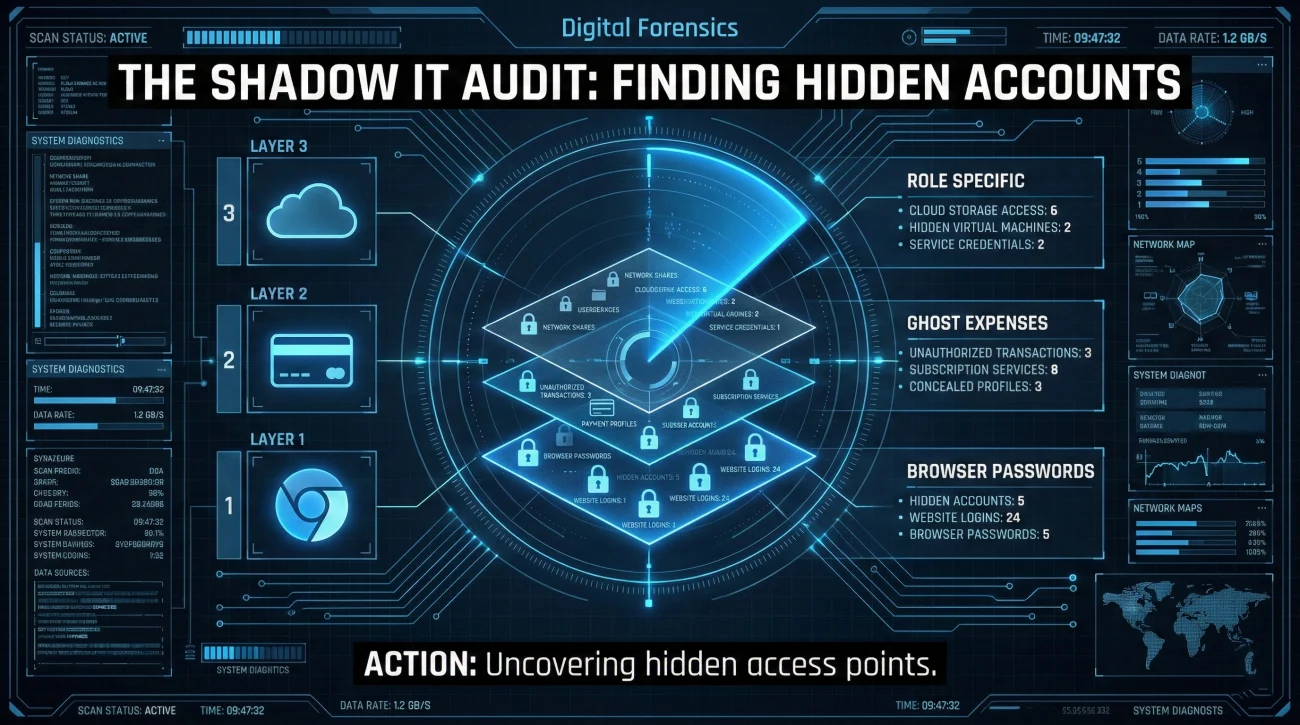
Before you can hand over access, you must identify what you actually control. Most professionals drastically underestimate their digital footprint. You likely possess accounts that the IT department doesn’t even know exist – a phenomenon known as “Shadow IT.”
To ensure a complete digital assets handover, perform this three-step forensic audit on yourself:
1. The Browser Forensic Sweep
Your brain forgets, but Google Chrome doesn’t. Go to Settings > Autofill > Passwords. This list is the single source of truth for your daily tools. You will likely find 20+ accounts you forgot about, from that random stock photo site to the PDF converter you used once.
2. The “Ghost” Expense Check
Pull up your expense reports or credit card statements for the last 12 months. Look for recurring SaaS subscriptions (e.g., Canva, Zoom, Trello). If you expensed it, you own it. These are often the accounts that get lost in transition, causing billing issues later.
3. The Role-Specific Trap
Hidden assets vary by department. Check these commonly missed items:
- 🎨 For Marketers: Facebook Ad Accounts (personal ad ID attached?), Domain Registrars, Social Media 3rd party tools (Buffer/Hootsuite).
- 💻 For Developers: SSH Keys on servers, API Keys in local environments, Cloud Root accounts, Domain DNS controls.
- 👥 For HR/Admin: Job board logins (LinkedIn Recruiter), Building access codes, Corporate Uber/Lyft accounts.
Phase 2: The “Air Gap” Transfer Protocol
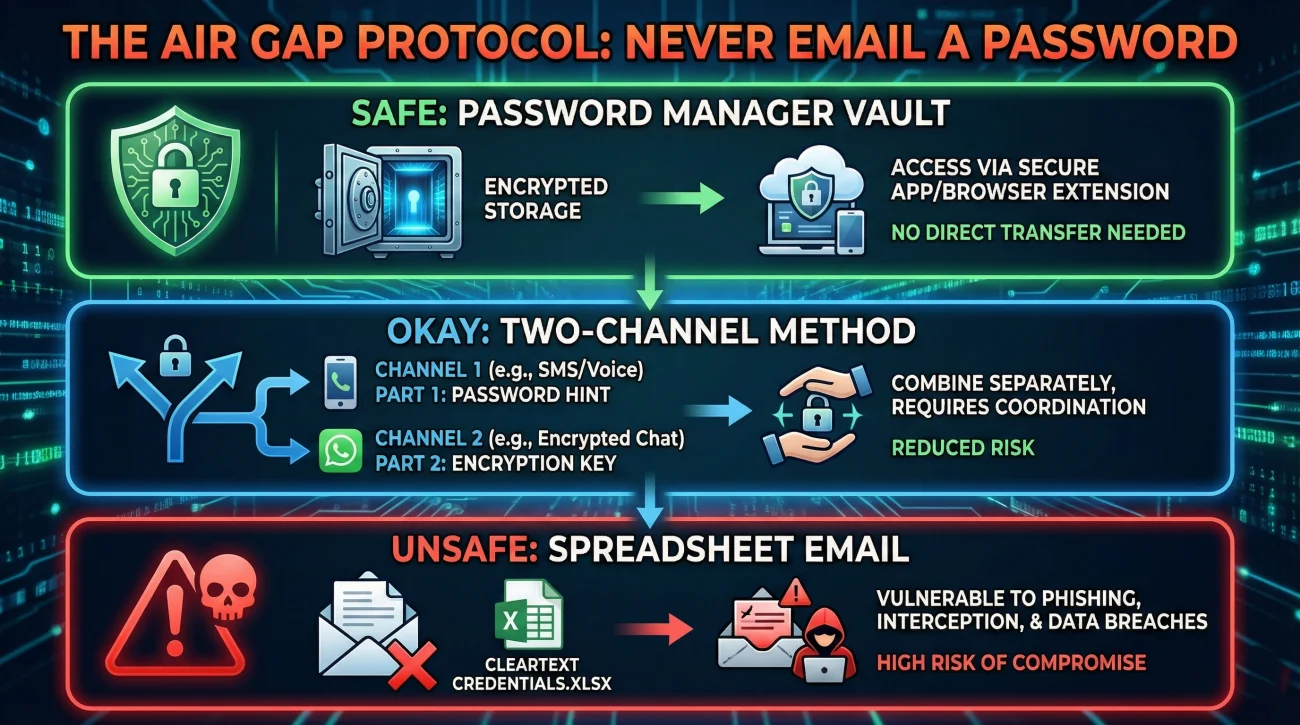
The cardinal sin of a sharing passwords handover is sending the username and password in the same channel (e.g., one single email). If that email is intercepted, forwarded, or hacked, the keys to the castle are gone. Instead, use the “Air Gap” (or Two-Channel) method.
| Method | Security Level | The Workflow |
|---|---|---|
| Enterprise Password Manager | ⭐⭐⭐⭐⭐ (Elite) | Use 1Password/LastPass Teams. Move credentials to a “Shared Vault.” Grant your successor access. Result: They get access without ever seeing the raw password. |
| The Two-Channel Method | ⭐⭐⭐⭐ (Strong) | Channel 1 (Email): Send the Username/URL. Channel 2 (Signal/SMS): Send the Password. Even if one channel is breached, the account remains safe. |
| The “Self-Destruct” Link | ⭐⭐⭐ (Good) | Use a service like 1ty.me or OneTimeSecret. Create a link that allows the password to be viewed once, then deletes itself forever. Email the link. |
| Plain Text Spreadsheet | 🚫 (Liability) | Never do this. It creates a permanent, searchable record of your secrets that lives in the “Sent” folder forever. |
Phase 3: The 2FA Migration (The Hardest Part)
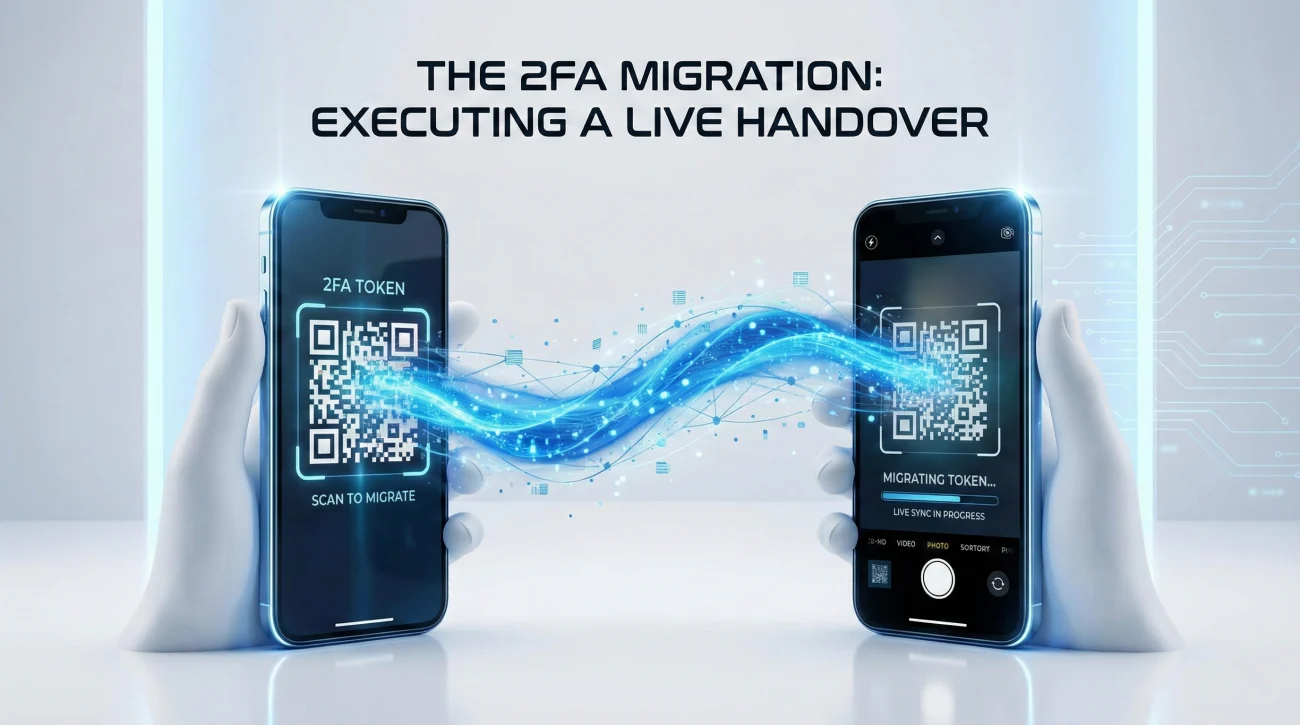
Two-Factor Authentication (2FA) is the biggest friction point in modern handovers. You cannot simply “email” a 2FA code; it changes every 30 seconds. If an account is tied to your personal phone number or Google Authenticator app, you are the bottleneck.
The “Live Handover” Strategy:
- Schedule a Sync: Book a 15-minute meeting called “2FA Migration” with your successor.
- Login Together: Share your screen (or sit side-by-side). Log in to the service.
- The Swap: Go to Security Settings > 2FA. Turn it OFF (temporarily).
- Re-activate: Have your successor scan the new QR code on their device immediately.
- Verify: Have them log out and log back in using their code while you watch.
⚠️ Warning: Do not do this asynchronously. Leaving an account with 2FA turned off “for them to fix later” is a major security gap.
Secure Handover Templates
Use these templates to document your handover without exposing the secrets themselves. They act as the “Treasure Map,” not the “Key.”
Scenario A: The “Master Access Map” (Standard Handover)
Use this credential transfer email to orient your successor. Note how it points to the secure location rather than containing the sensitive data itself.
Subject: SYSTEM HANDOVER: Access Inventory & Security Protocols – [Your Name]
Hi [Successor Name],
To ensure a secure transition of all digital assets, I have prepared a Master Access Inventory. For security reasons, no passwords are included in this email.
🔐 ACCESS PROTOCOLS
- Primary Method: I have compiled all credentials into a secure vault titled “Handover_[Year]” via [1Password/LastPass]. You should have received an invite to this vault 10 minutes ago.
- Backup Method: For systems not in the corporate vault, I have placed an encrypted PDF in the confidential drive: [Link].
(I will verify the decryption password with you verbally during our sync).
🚨 CRITICAL SYSTEMS (Immediate Action Required)
- CRM (Salesforce): Ownership has been transferred. Please log in today to verify your “Super Admin” status.
- Social Media (LinkedIn/Facebook): I have initiated the “Page Admin” transfer. You must accept the invitation in your notification tab by [Date] or the invite will expire.
📱 2FA TRANSFER MEETING
The AWS Root account and the Bank Portal are currently tied to my personal authenticator app. We need to migrate this to your device live. I have sent a calendar invite for [Date/Time] to execute this swap.
Please confirm once you have successfully accessed the vault.
Best,
[Your Name]
Scenario B: The “Keys to the Kingdom” (Admin Rights)
Transferring “Super Admin” rights is high-risk. This account access handover email creates a paper trail proving you relinquished control and are no longer responsible for future changes.
Subject: ADMIN TRANSFER CONFIRMATION: [System Name]
Hi [IT Director / Manager],
This email serves as formal confirmation that I am relinquishing Admin privileges for [System Name/Platform], effective immediately.
✅ TRANSFER LOG
- New Owner: [Successor Name] has been promoted to “Super Admin.”
- Billing: The credit card on file has been updated to the corporate card ending in x1234.
- My Access: I have downgraded my own account to “Read Only” / Deleted my user entirely.
⚠️ SECURITY RECOMMENDATION
The API Keys for this account were last rotated in [Month/Year]. Since I had access to these keys, I strongly recommend the engineering team rotates them again after my departure date ([Date]) as a standard “Zero Trust” security precaution.
Regards,
[Your Name]
Scenario C: The “Digital Assets” Handoff (Domains & Hosting)
Digital assets handover requires specifics. Losing a domain name because the renewal email went to a deleted inbox is a classic disaster scenario.
Subject: CRITICAL ASSETS: Domains, Hosting & DNS Control
Hi [Name],
Here is the status of our web infrastructure credentials. Please treat these with the highest level of security.
🌐 DOMAIN REGISTRAR (GoDaddy/Namecheap)
- Access: Credentials added to the shared vault.
- Warning: The domain [example.com] auto-renews on [Date]. The verification code will be sent to [email@company.com]. Ensure this alias forwards to you immediately.
☁️ CLOUD HOSTING
- SSH Keys: I have removed my personal SSH public key from the server’s
authorized_keysfile. - Root Password: Reset today. The new complex hash is in the secure vault.
Please confirm receipt and verify access to the registrar dashboard.
Best,
[Your Name]
How to Handle “Unsafe” Requests (The Pushback)
Sometimes, a manager or colleague will ask you to do something unsafe: “Just email me the password, I’m in a rush.” If you comply, you create liability. If you refuse bluntly, you look difficult. Here is how to handle it professionally.
| The Request | The Professional “No” |
|---|---|
| “Can you text me the password?” | “I’d prefer not to send credentials via text for security reasons. I’ve put them in LastPass/1Password for you – it’s safer and you’ll have permanent access there.” |
| “Just use your login for a few weeks.” | “I can’t share my personal login as it violates our security policy (and audit logs). Let’s take 5 minutes to set up your own seat so you don’t have issues later.” |
| “Write it down for me.” | “I follow a ‘Clean Desk’ policy to protect our data. I’ve documented everything digitally in the encrypted folder so it’s searchable and secure for you.” |
❓ FAQ: Security & Ethics
🔐 What if I don’t know the password (it’s auto-saved)?
This is common. Go into your browser settings (Chrome: Settings > Autofill > Passwords). You can view and copy the passwords there. Do not take a screenshot. Copy them directly into the secure vault or password manager.
📱 How do I transfer an OTP (One-Time Password) app?
You generally cannot “transfer” it remotely. You must log in to the service, turn off 2FA, and then have your successor log in and turn it back on, scanning the new QR code with their device. Do this live on a video call to ensure the account isn’t left unprotected.
⚖️ Can I keep a copy of my work samples?
Be extremely careful. Copying proprietary data, client lists, or codebases is often grounds for legal action. Only take what is public-facing or explicitly approved by HR. When in doubt, leave it behind.
🗑️ Should I delete my emails?
Generally, no. Your emails are company property. However, you should delete personal correspondence. Create a “Personal” folder, move your private items there, and ask IT if you can purge that specific folder. Do not wipe your professional history; it looks suspicious.
Final Thoughts: Security is Your Legacy
A professional login details handover is the digital equivalent of returning the office keys. It signifies a clean break and a respect for the assets you managed. By following these protocols, you protect your former employer from hackers and yourself from negligence claims.
Leave the accounts cleaner, safer, and more organized than you found them. That is the mark of a true professional. For more details on the logistics of leaving, check out our guide on handover email best practices or explore our goodbye and handover emails category. Start your journey to a smarter resignation at our homepage.
⚠️ Legal Disclaimer: ResignSmartly provides general informational guidance about resignation, workplace communication, notice periods, handovers, and career transitions. Content does not constitute individualized legal advice. Employment laws, contracts, workplace policies, and individual circumstances vary, so review the requirements that apply to your situation and consult an appropriate qualified professional when needed.